
How to show Canva designs on your digital signage screens
Playboard is the digital signage platform we build at Pixel Lab. It has an official Canva integration, so you can put a Canva design on your screens without exporting and uploading files yourself. This guide shows you how to set it up, add your first design, and keep it up to date.
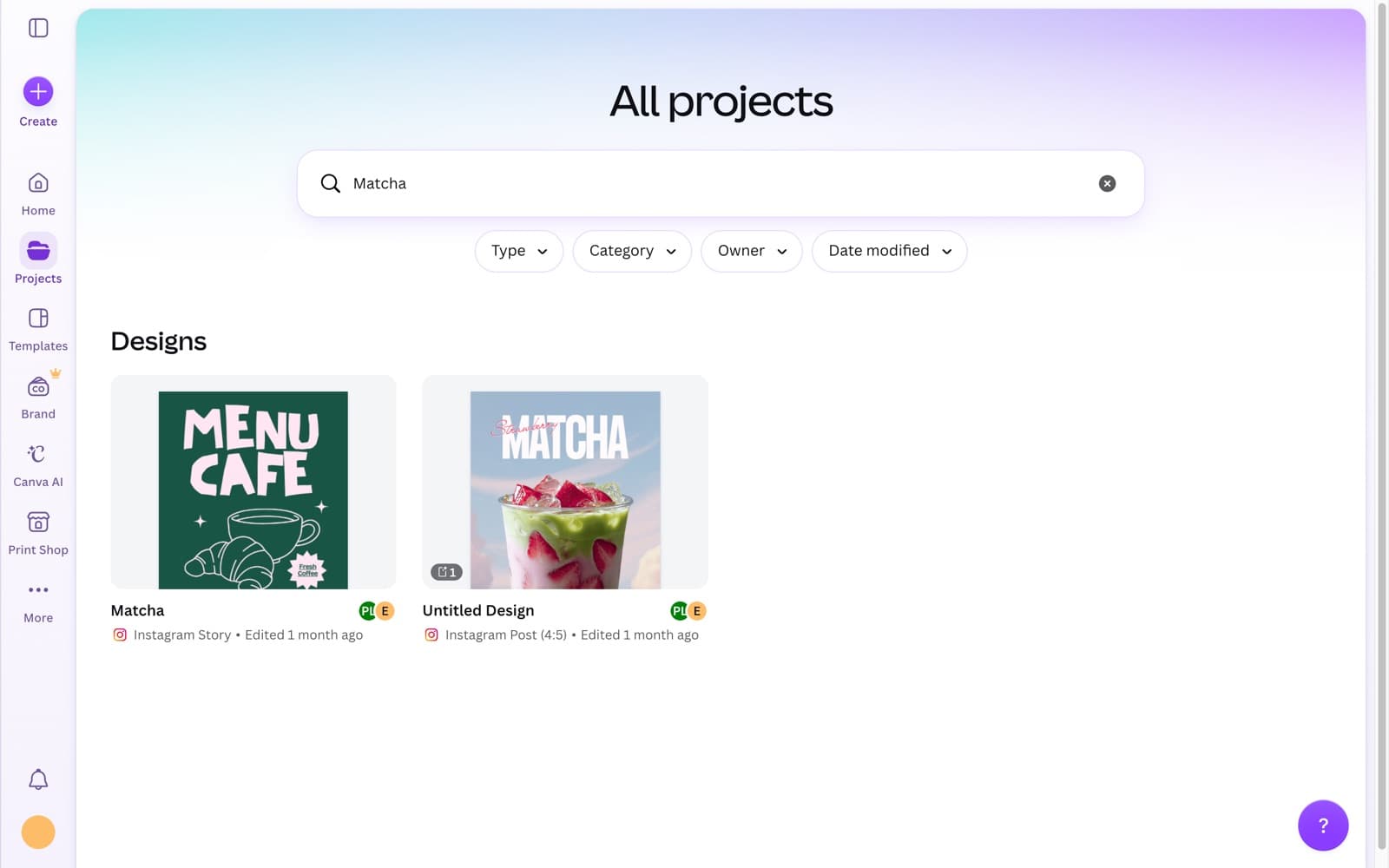
Why use Canva for your screens?
You can upload images and videos to Playboard straight from your computer. The Canva integration is for when your designs already live in Canva:
- No file handling. Playboard exports the design from Canva for you, so there is nothing to download, rename, or upload.
- Easy updates. When you change a design in Canva, you sync it in Playboard with one click.
- Control over what goes live. A change in Canva doesn't reach your screens until you sync it.
- A record of changes. Each design keeps a history of who added it and who synced each update.
What you need
- A Canva account. A free account works.
- A Playboard account. You can sign up here.
- A device for your screen. The Playboard player runs on Windows and macOS. One device can run more than one screen.
Adding a Canva design to Playboard
- Make your design in Canva
Make the design at the same size as your screen. For example, 1920 × 1080 for a landscape screen. If your design has animation, you can show it as a video.
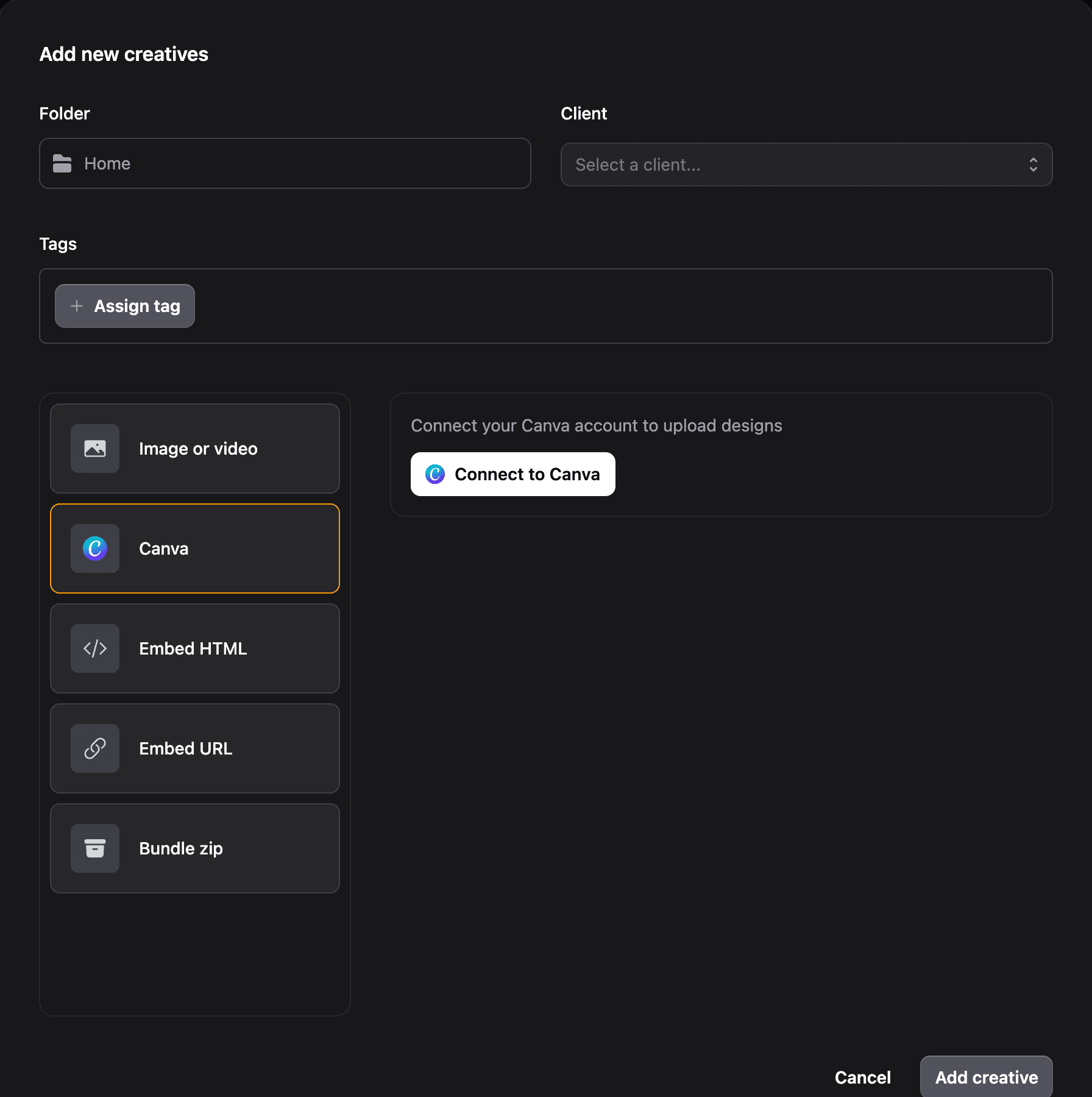
- Connect Canva to Playboard
You only do this once. In Playboard, open Content, then Creatives, and click Add creative. Select a client, select Canva on the left, and click Connect to Canva. Follow the steps in Canva to allow access.
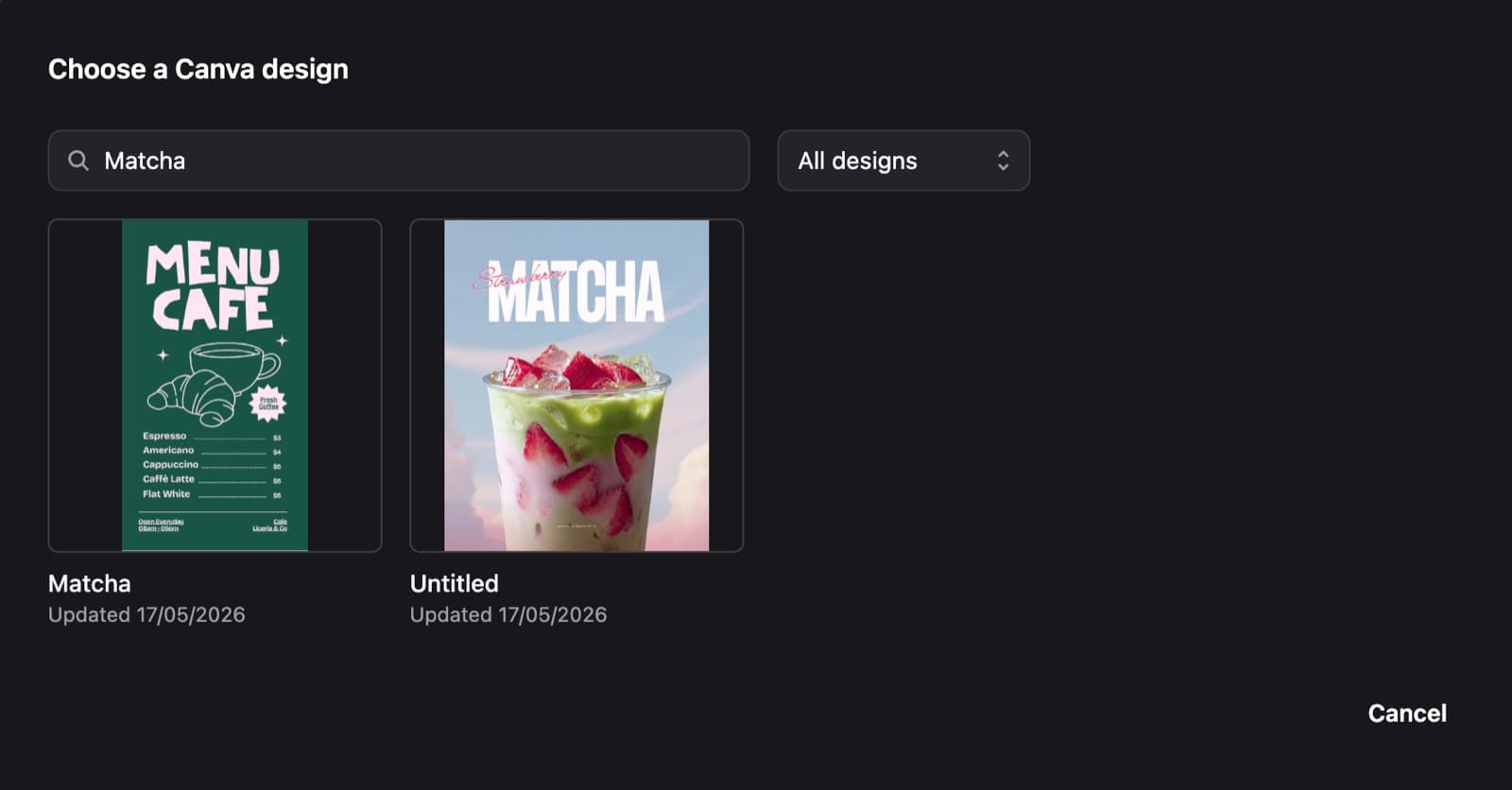
- Choose your design
Click Upload from Canva and pick a design. You can search your designs by name or paste the design's link. When Playboard asks What type of content is this?, choose Image for a static design or Video for a design with animation.
- Add it to your library
Check the name under Selected design, then click Add creative. Playboard exports the design from Canva and adds it to your creatives library.
- Put it on a screen
The design is now a normal creative. Add it to a campaign and book the campaign on your displays. It plays alongside your other images and videos.
Updating a design
When you need to change a design, open the creative's menu in Playboard:
- Edit in Canva opens the design in Canva, so you can make your change.
- Sync from Canva gets the latest version of the design and sends it to your screens.
Playboard doesn't sync changes on its own. You can work on a design in Canva for as long as you need, and your screens keep showing the last version that you synced.
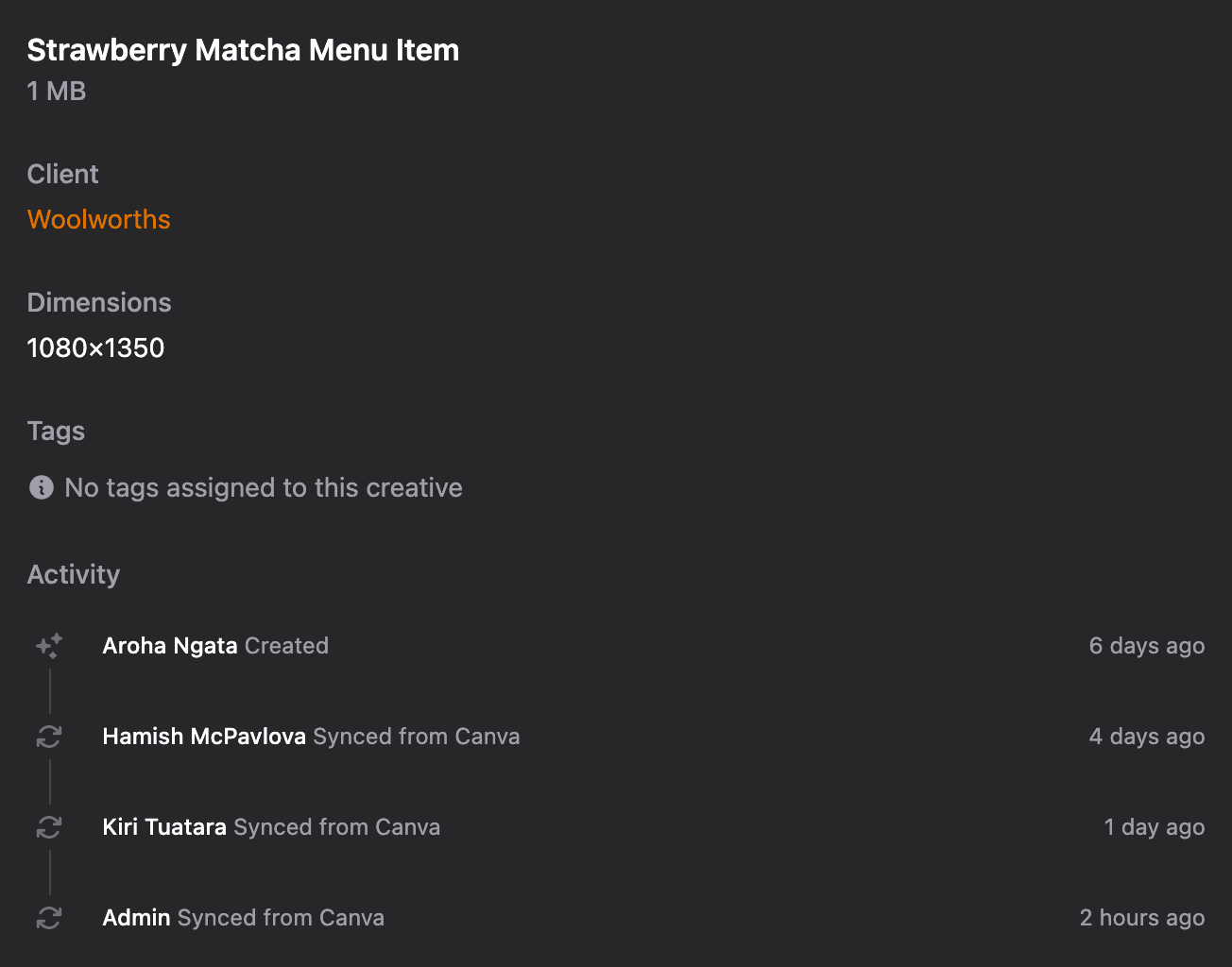
To see the history of a design, open the creative. The activity list shows who added it, who synced each update, and when.
Next steps
The Playboard help docs have the full steps for creatives, campaigns, and devices. You can also read more on the Canva integration page.
Wrapping up
If you already make your designs in Canva, connecting it to Playboard removes the export and upload step. You make the change in Canva, click sync, and your screens show the new version.
To try it, create a Playboard account. If you want to try Playboard before you pay, click Request a free trial when you set up your team. There are no lock-in contracts and no minimum number of devices. If you have questions, get in touch.