
Using Canva at scale as a media owner
If you run a network of digital screens, you know the artwork problem. A client sends a design. Someone exports it from Canva, downloads it, renames it, and uploads it to the signage software. Then the client asks for a small change, and you do it all again. With ten clients and fifty screens, that loop eats a lot of your week.
I built the Canva integration in Playboard, our digital signage platform at Pixel Lab, to remove that loop. It’s an official Canva integration, reviewed and approved by the Canva team before it went live.
The artwork problem at scale
The work itself isn’t hard. The trouble is everything around it:
- Files go stale. The version on screen and the version in Canva drift apart, and nobody is sure which one is current.
- Every change is manual. A typo fix means another export, download, and upload.
- Artwork gets lost. Files end up in email threads, shared drives, and downloads folders, with names like
final_v3_FINAL.png.
Why Canva fits
Your clients and your own team probably already design in Canva. It has templates for screen sizes, brand kits, and animation, and a free account is enough to get started. So instead of asking people to learn a new design tool, it makes more sense to connect the tool they already use straight to the screens.
From Canva to screen in four steps
- Design in Canva. Build the design the same way you design everything else. Match the size to your screens, for example 1920 × 1080 for a landscape display.
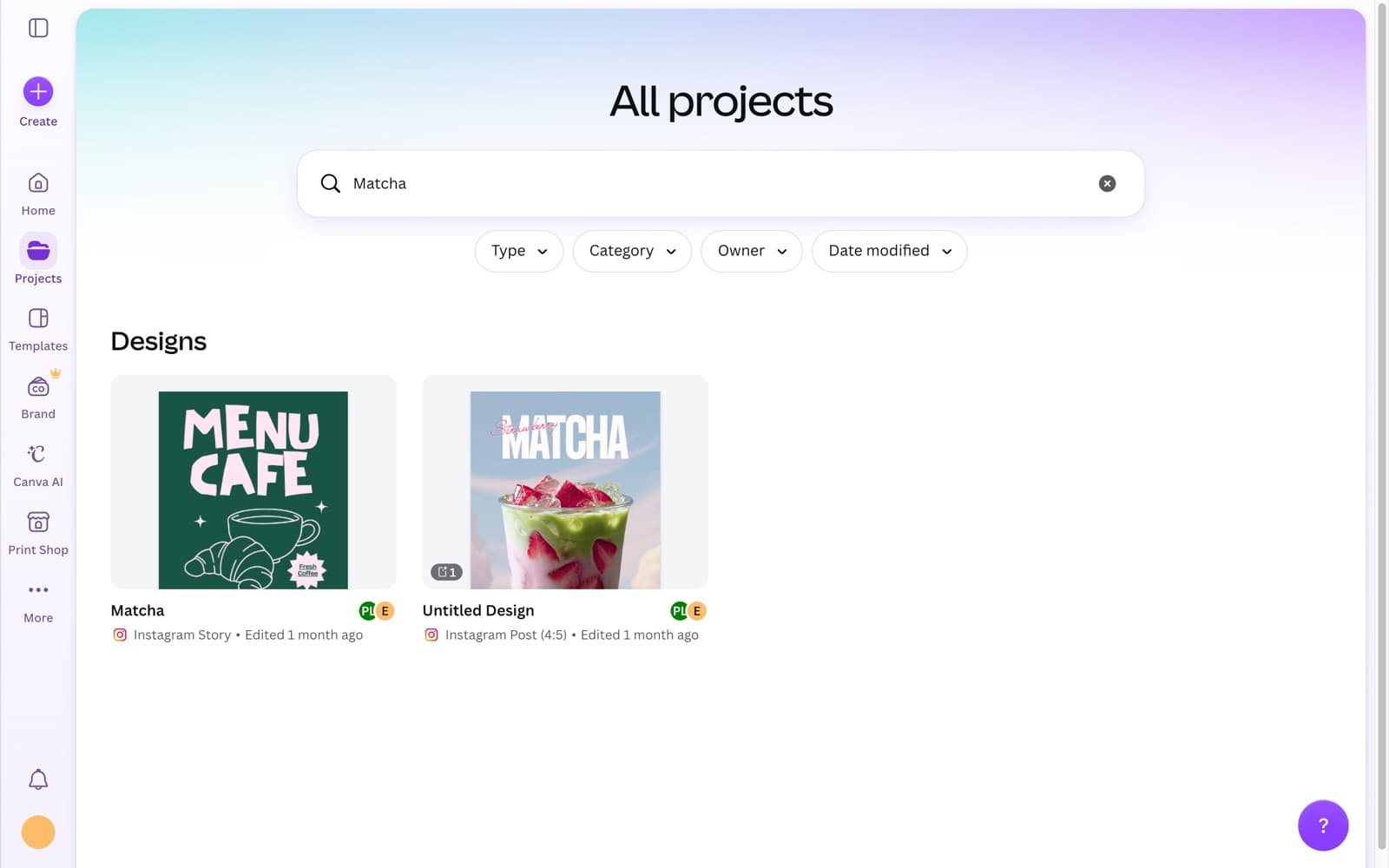
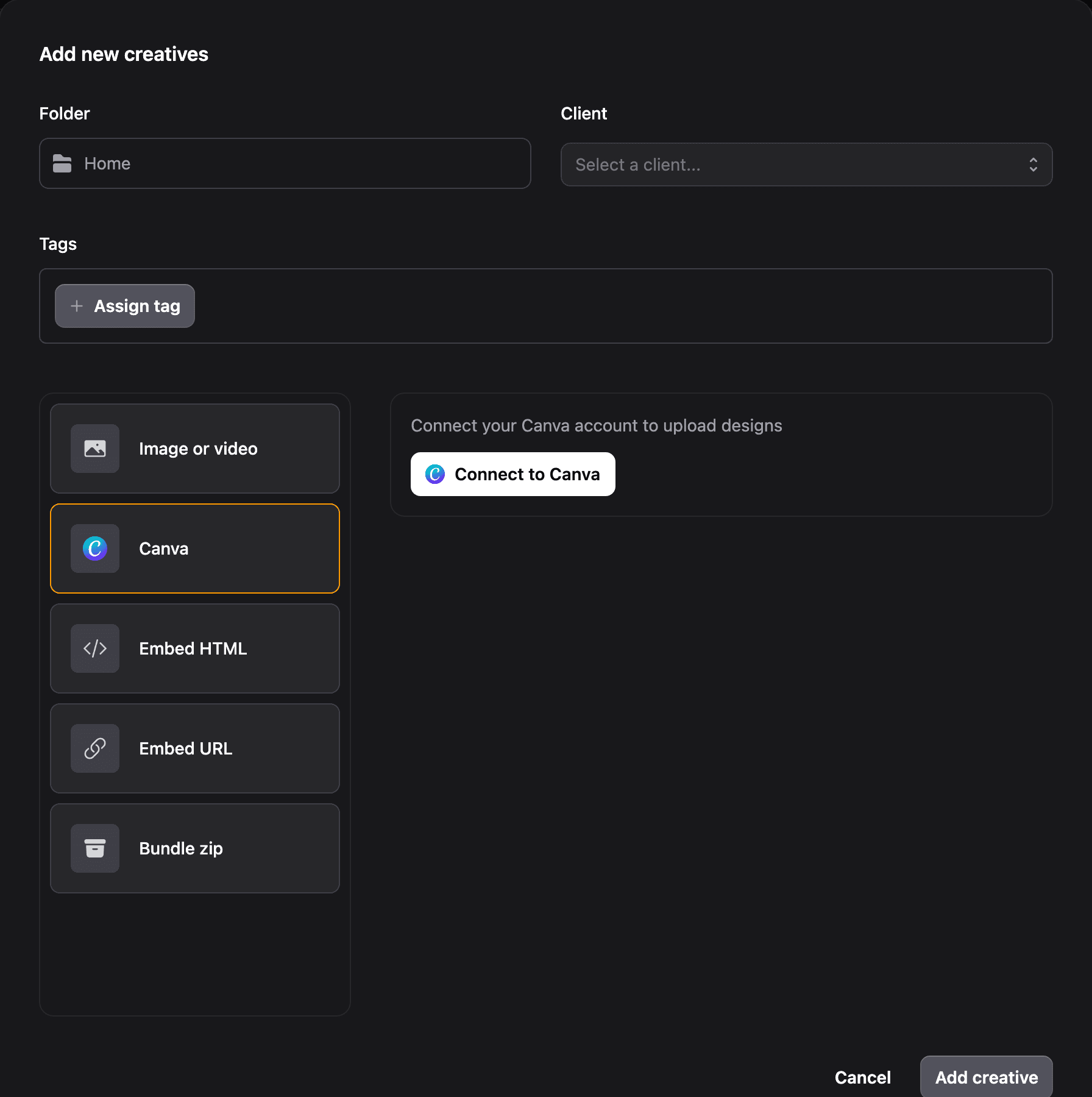
- Connect Canva to Playboard. You do this once. When you add a new creative, choose the client, choose Canva, and click Connect to Canva.
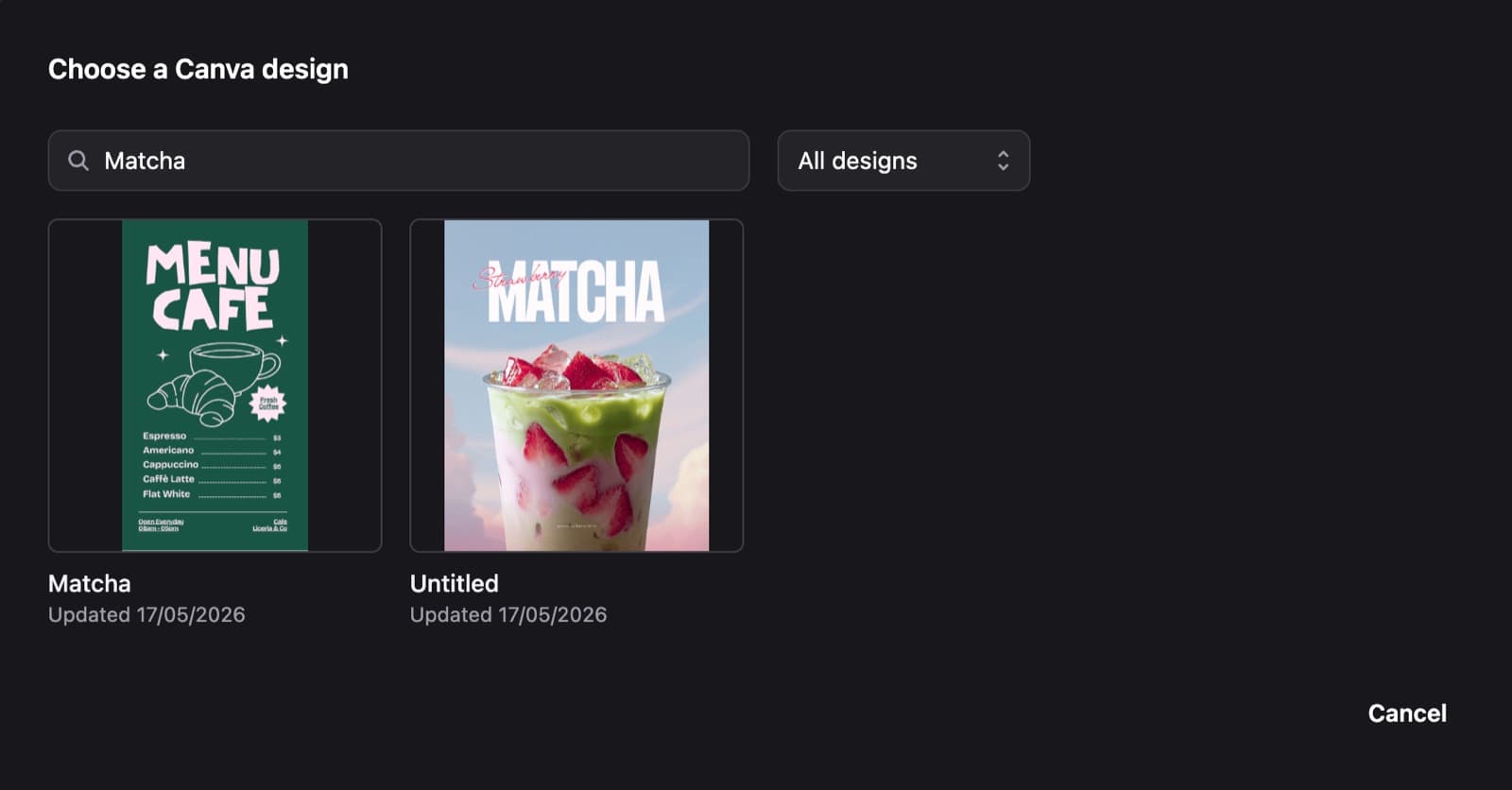
- Import the design. Search your Canva designs by name, or paste the design’s link. You can also filter to only the designs you own. Choose Image for a static design or Video for one with animation. Playboard exports it from Canva as an image or video and adds it to your creatives library.
- Schedule it. The design is now a normal creative. Add it to a campaign, book it on your displays, and mix it with images and video in the same loop.
The full steps are in the Playboard help docs.
Approvals and updates
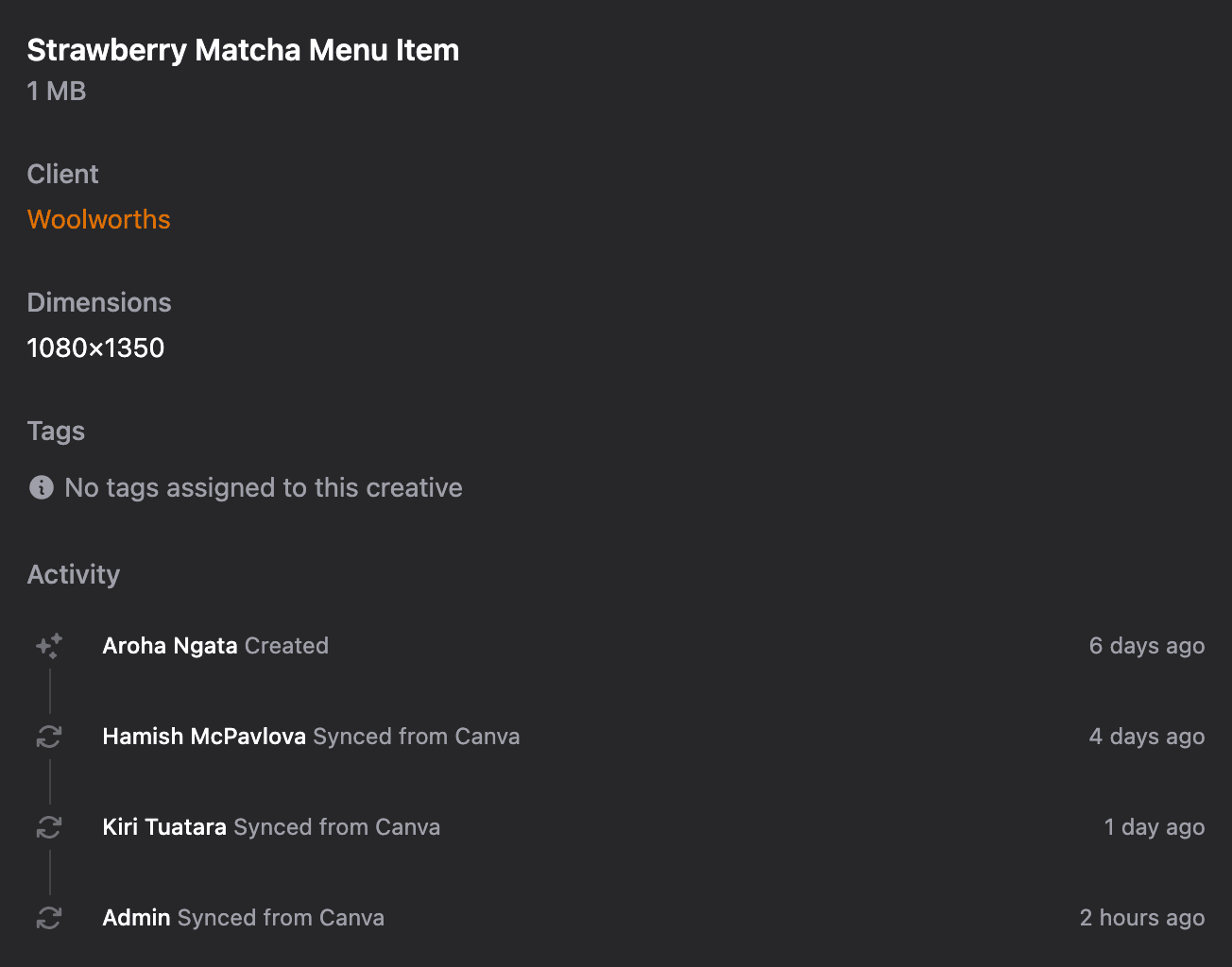
Here’s the part media owners care about most: a change in Canva doesn’t go live on its own. When a design changes, you click Sync from Canva on the creative when you’re ready. That way only approved artwork ever reaches your screens, and a half-finished edit never goes live by mistake.
If you need to make the change yourself, Edit in Canva opens the design straight from Playboard.
Each creative also keeps its own activity history. Open the creative to see who added it, who synced each update from Canva, and when. If a client asks why their artwork changed, you have the answer.
For agencies and networks with many clients, you can turn the Canva integration on for each client separately, and each imported design stays in that client’s folder.
Meet Playboard
Canva is one part of Playboard. The rest of the platform covers everything else a media owner needs to run a screen network:
- A player that runs on hardware you already own. The Playboard player runs on Windows and macOS, and it keeps playing if the internet drops out.
- Scheduling across your network. Plan bookings by display and date range, and update one screen or all of them in minutes.
- Reports clients can trust. Proof-of-play reports show plays delivered against plays booked, and you can share them with clients.
- Alerts. You find out when a display goes offline, before a client does.
Wrapping up
If your team already designs in Canva, the slow part of digital signage is getting artwork onto screens and keeping it current. Connecting the two removes that work, and it keeps you in control of what goes live.
Playboard has no lock-in contracts and no minimum number of devices, and you can learn more about the Canva integration or request a free trial. If you have questions about Playboard, get in touch.